Inverse Evaluation

Related
Instead of tweaking the inputs to see what results you get, Glisp lets users directly manipulate the desired outcome—and then the software works backward to calculate the appropriate inputs.
Overview
Many professional tools allow parameters to be set using expressions or formulas. For video creators, this may be familiar from the “expression” feature in After Effects. However, in most cases, once a parameter is set via an expression, it becomes a calculated value—meaning the user can no longer manipulate the result directly. For instance, if the radius of a circle is set to 2 * 4, it automatically draws a circle with radius 8, but you can no longer drag the handle to adjust the radius directly.
In Glisp, even when a parameter is defined with an expression, the system can reverse-solve the formula so that it still yields the desired result. In programming terms, this is known as bi-directional evaluation, but here we refer to it more intuitively as reverse-editing. This allows users to tweak values interactively—even after parametric definitions have been set.
In the example above, the turquoise circle’s radius is set by the formula r * 2. If you want that circle’s radius to be 100, you’d normally have to mentally back-calculate r = 50 and manually enter it. But by defining inverse functions for certain operators, Glisp allows you to continue using direct manipulation even when parameters are defined by formulas.
This kind of reverse-solving is already used in parts of existing systems:
- In character animation, IK (inverse kinematics) lets you move the hand while automatically solving the elbow and shoulder joint angles.
- In shape hierarchies, when you move a child element on the artboard, the system compensates for the parent’s transform and updates the child’s local position accordingly.
The strength of reverse-editing is that it generalizes this behavior, and lets users create their own reversible logic freely.
Units
Most graphics programming environments use radians to specify angles, which is not very intuitive for humans. By using conversion functions, users can work in degrees, or even phrases like “1.5 turns.” And with inverse functions, they can still directly edit those parameters after conversion.
多くのグラフィックプログラミング環境では、角度指定にラジアンを用いますが、人間にとってはあまり直感的な単位とは言い難です。そこで、単位変換のための関数を用意することで、度数法や「○回転半」といった好きな単位系を使うことができます。その逆関数を実装することで、単位換算したパラメーターを直接編集しつづけることができます。

Linkage
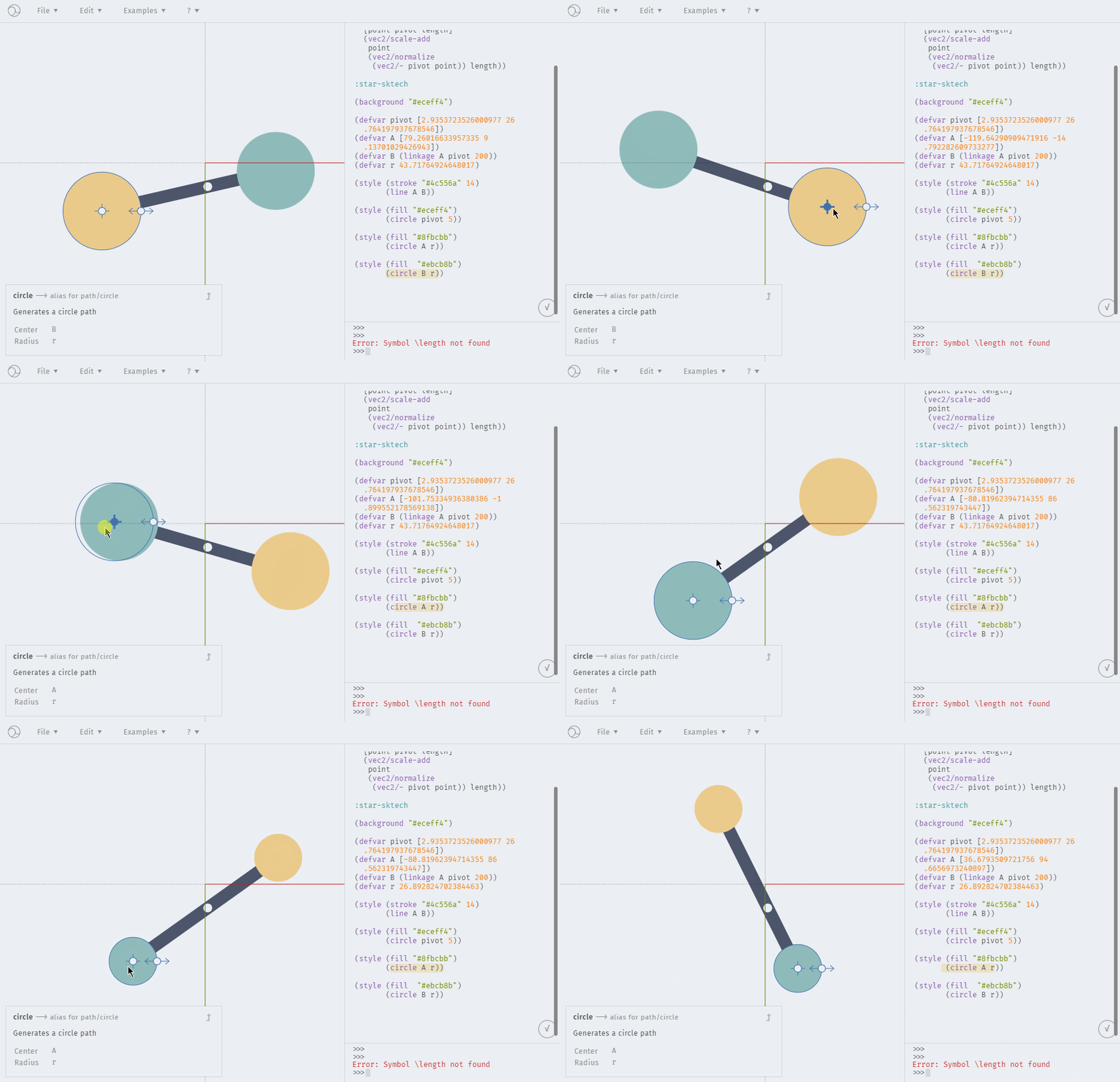
By enabling reverse-editing in a custom shape defined as a line segment of a fixed length between a start point and a through point, you can drag either endpoint freely.
1点を端点、もう1点を通過点とする、ある長さの線分を描くカスタムシェイプに逆算編集を実装することで、どちらの端点からもドラッグ操作で動かすことができます。
Lock
You can disable reverse-editing for specific parameters by locking them—conceptually similar to layer locks or transform locks, but more abstract. In the example, the X coordinate of the traffic light can be edited, but the Y coordinate is locked.

Boolean
True/False, Yes/No, 0/1—these are all boolean pairs. In this example, reverse-editing is applied to a negation operator: the system figures out the original value that would produce “Yes” as the negated result—i.e., it deduces “No” on its own.
String
Reverse-editing can be applied to strings too. For example, if a parameter includes a formula that reverses a string, you can edit the final result (e.g., “Hello”) and the system will automatically compute the original string that would produce it when reversed.
文字列にも逆算編集をすることができます。例えば、ある文字列タイプのパラメーターに、「文字の並びを反転させる」数式が入力されていた場合にも、その値を編集することで「『反転させた結果『Hello』になるような文字列」を自動的に逆算してくれます。

Color
Functions that compute things like complementary colors can also define inverse functions, enabling direct manipulation of the final color.
「反対色の計算」といった色を扱う関数もまた逆関数を定義することができるので、直接編集が可能になります。